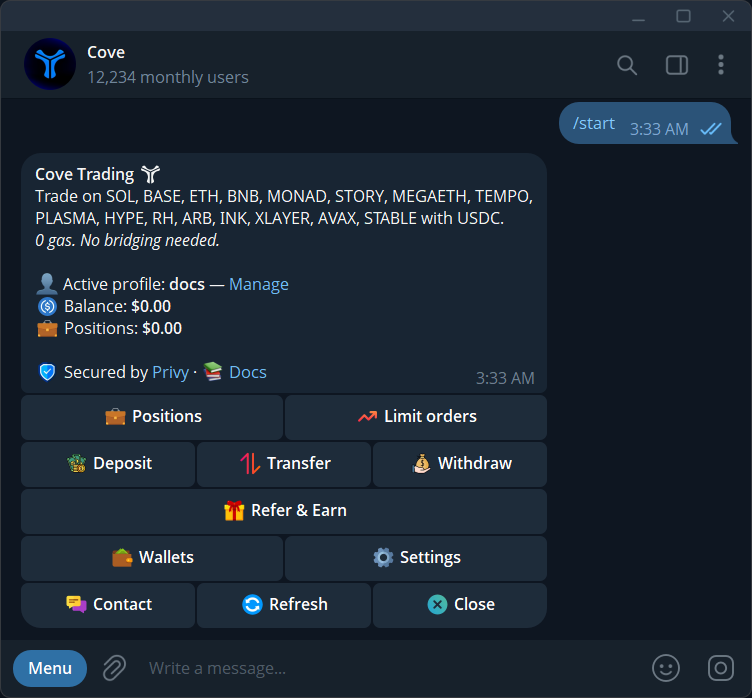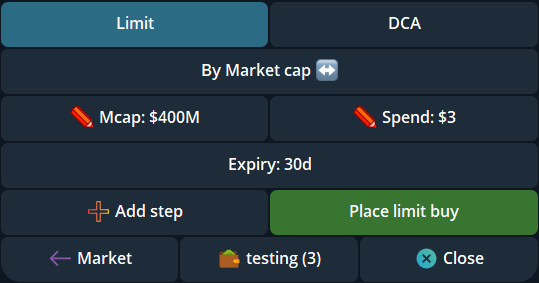
- A profile groups wallets, positions, orders and trading settings under one Cove login.
- Split Total shares one amount across wallets; Per Wallet applies the full amount to each.
- Switching or archiving profiles does not stop open orders.
1. Separate the profile from the wallet selection
A profile is a workspace for a set of wallets, positions, orders and trading settings. Main is the starting profile. Within it, wallet selection chooses which wallets participate in your next trade. This lets you organize activity without signing in to another Telegram account.
Open /profiles to see the active profile, then /wallets to inspect its wallet selection. A check mark means a wallet participates in trading; a star identifies your primary wallet. The primary receives transfers from other users and reward payouts, but it is not the only wallet you can select. Some older labels still say Account. If Profiles is unavailable in your account, use the wallet tools shown there.
2. Create a profile with deliberate settings
In /profiles, choose New profile and give it a name. Cove switches into it, then offers Copy settings from or Start fresh. Copying carries over presets, slippage, confirmations, auto-buy and TP/SL setup. It does not copy wallets, positions or wallet selection.
Review those copied controls before opening a token. In particular, Auto-buy on paste can submit a purchase when a token is pasted, and trade confirmations determine whether an amount button creates another review step. Add a wallet through /wallets or move an existing one using its settings. The documented limit is ten wallets in one profile; check current availability in the picker.
3. Check the selected wallets and deployable funds
Tick the wallets you want to use in /wallets. Read the selected count and Deployable (selected), then return to a fresh token panel. At least one wallet remains selected; Deselect all does not create an empty selection. A trade operates within the active profile, not across every profile in the account.
Balance means spendable USDC. A position's displayed value or stablecoins parked on another chain are not automatically available for the next buy. Check the relevant wallet's funding and bridge state before interpreting a large account total as deployable cash.
4. Understand what the buy amount means
Open the wallet picker's Multi-account settings and review Spend type. With Split Total, the panel amount is one total shared across the selected wallets. With Per Wallet, every selected wallet uses the full amount. For an illustrative $100 buy with two wallets, that means $100 across both or $200 combined, before applicable execution costs.
Buy variance changes wallet-level allocations in Split Total mode and is ignored in Per Wallet mode. Transaction delay spaces buys apart; Primary wallet first gives that wallet a head start when selected. Inspect the available values. These buy settings do not turn a batch into one all-or-nothing transaction. DCA buys have their own rule: they always split the ladder's total across wallets.
5. Review each wallet's result
The combined receipt can report Bought X/Y Successfully. Read actual spending, received tokens and any failure for each wallet. A max-buy cap note explains when the token's limit reduced a requested purchase. One successful line does not mean the entire batch succeeded, and repeating the whole batch can buy again in wallets that already filled.
For multi-wallet selling, choose a percentage or a dollar amount. A percentage applies the same share to each selected wallet's holding. For a dollar amount, Cove calculates one percentage from the selected wallets' combined position value and applies it across them, allocating the target proportionally to holding value. Live quotes, rounding and wallet-level failures can change the actual result. Expand position details and review every wallet's execution receipt before retrying any part.
6. Switch profiles without losing track of orders
Switch with /profiles or Active on a trading panel. The new profile brings its own balances, selection and settings. A moved wallet retains its address; its positions, orders and history move with it. If an agent permission prevents the move, review that permission before continuing.
Archiving hides a profile and can be reversed from Archived. It does not sell positions, revoke access or cancel automation. Check /orders in every relevant profile when you want to stop orders. If a holding appears missing, first inspect the active profile, other profiles and Archived before assuming the asset has disappeared.
Sources & further reading
Product settings and availability can change. Check the current documentation before using a feature. Educational content does not predict trading outcomes.
How we approach our content