- A Cove limit order watches a market-cap target or percentage move, then attempts a market trade; the trigger does not guarantee a fill price.
- Manual TP/SL can reference the market or each wallet's entry price; Auto TP/SL uses the buy entry.
- Cove DCA has two modes: a price ladder across market-cap targets or a finite Time Interval plan for scheduled buys or sells.
1. Choose the condition you want to automate
A DEX swap has no traditional order-book limit resting at a fixed price. In Cove, a limit buy watches a market-cap target or percentage move, then attempts a market trade. A take-profit attempts to sell after a rise; a stop-loss attempts to sell after a fall. A trailing stop follows the highest price since placement and reacts to a chosen drop from that peak.
The condition is a trigger, not a guaranteed execution price. When it fires, Cove attempts a market trade using the applicable settings and available route. A chart crossing your target does not establish that the order filled. Follow the order status and execution receipt.
2. Create a limit buy
Open the intended token and check the network, active profile, selected wallets and spendable USDC. Choose Limit → Buying on the Limit tab. Select one of the trigger presets or Custom to enter a fixed market cap, a signed percentage move or a multiple. Choose the USD spend separately; a trigger percentage is not your buy amount.
For a hypothetical token at 1m market cap, a custom 800k target represents a dip below the current market; +10% or a 1.1m target represents a breakout above it. These numbers illustrate the inputs, not suggested trades. Review the direction arrow, target preview, amount, wallets and Expiry before placing. The documented default expiry is 30 days; confirm the value in your form. Open /orders to verify creation.
Why a DEX limit target may not fill at that price
The target determines when Cove can try the trade. It does not reserve liquidity or promise that the quote will still be available when execution reaches the chain. A target can be crossed while a route is unavailable, pool liquidity is thin, the slippage guardrail refuses the quote, or an order remains pending after a high-impact refusal.
Check /orders and the actual receipt before placing a replacement. If you need to change a target, edit or cancel the pending order in the correct profile. Increasing slippage may allow a worse execution; it does not make the target price guaranteed.
Check where a TP/SL percentage starts
Before creating a manual percentage exit, open Settings → Trade panel settings → Manual TP/SL basis. Market price uses the market when you place the order. Entry price uses each wallet's average entry at that moment. This reference stays fixed after placement, even if you buy more later.
If entry market cap was 1m and the current market is 1.5m, a 20% down condition gives a 1.2m target with Market price or 0.8m with Entry price. For several wallets, entry-based targets can differ. Cove reports when a missing entry requires a market-price fallback. From the holding, choose Limit → Selling → Take profit or Stop loss, enter the trigger and sell percentage, and review the resulting target.
Spread an order across a market-cap range
Choose Price ladder under Limit → DCA to create 2–10 orders across a market-cap range. Choose Buying or Selling, then enter Min mcap, Max mcap, order count and expiry. Buy ladders use a total USD spend; sell ladders use a total percentage. These are totals for the ladder, not the amount of every rung. Time Interval is a separate DCA mode with 2–20 timed orders per wallet and an optional market-cap range.
For illustration, three price-ladder buy targets from 600k to 900k are 600k, 750k and 900k. A $300 total allocates $100 to each before execution costs and any allocation constraints. DCA buys always split the total across selected wallets, even if ordinary buys use Per Wallet. The rung count is per wallet. A range crossing the current market can mix dip and breakout orders; inspect the preview.
Understand standing settings and shortcuts
Settings → Auto TP/SL configures exits after eligible successful buys. It uses buy entry independently of Manual TP/SL basis. Review the sell-size basis: % of entry allocates a position slice, while % of remaining acts on what is left. Multiple levels are available only where enabled; use the controls shown in your account.
After a buy, verify the actual orders. Auto TP/SL Incomplete means a configured exit needs attention. Dynamic is an available take-profit sell style that attempts smaller, target-protected pieces when needed; it is not a stop-loss style. Reply shortcuts such as a complete /dca or /trailing command place orders immediately: sending the command is the confirmation. Learn the form first and send the bare command for its tutorial.
Keep track of what is still active
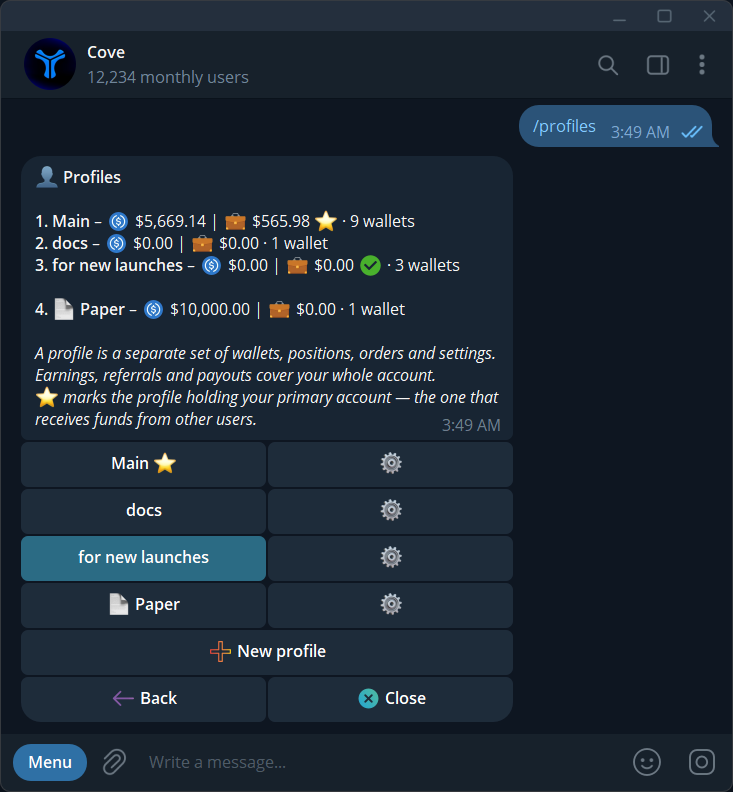
Use /orders in the correct profile to inspect, edit or cancel pending orders. Cancel DCA group cancels the ladder's remaining rungs; it does not reverse completed trades. A high-impact refusal can leave an order active, whereas a message saying no longer armed means that protection has ended. Read the specific status before replacing anything.
Closing Telegram, switching profiles or archiving a profile does not stop its orders. Review each relevant profile when changing your plan, and check per-wallet results before retrying a batch.
Sources & further reading
- Cove Docs: create a limit buy
- Cove Docs: take-profit and stop-loss
- Cove Docs: DCA orders
- Cove Docs: Auto TP/SL
- Cove Docs: manage orders
Product settings and availability can change. Check the current documentation before using a feature. Educational content does not predict trading outcomes.
How we approach our content