- A Paper wallet starts with $10,000 in virtual USDC and uses real market prices.
- Check the PAPER label before practising and the real profile before returning to live trading.
- Use simulation to learn the controls; its results do not establish real execution performance.
1. Open a practice wallet
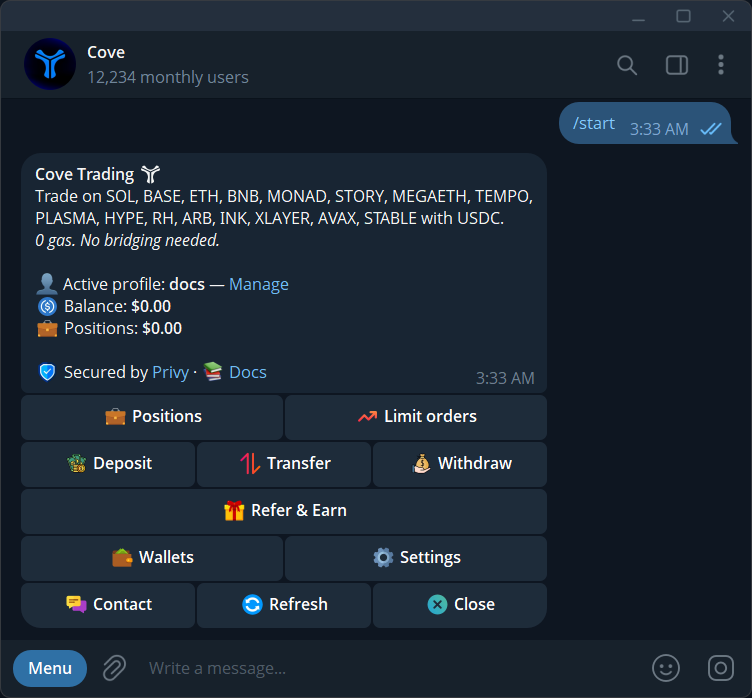
Yes, you can paper trade a supported meme coin in Cove's Telegram bot without spending real funds. Send /paper in your private Cove chat to open the system Paper profile. If you do not have a practice wallet, choose Create Paper Account; some buttons retain the older Account label. Each new Paper wallet starts with $10,000 in virtual USDC. No real deposit is needed to begin the exercise.
Before pressing a trading button, check for the PAPER label on the message. The practice balance is simulated money, not a withdrawal balance or a claim on real USDC. Paper uses the Telegram bot, so stay in the chat while following this walkthrough. Its wallets do not appear in the Mini Apps.
2. Learn the panel before submitting an order
First inspect Settings → Trade panel settings. Keep Auto-buy on paste off while learning how to look up tokens, and enable Buy confirm and Sell confirm if you want a separate review step. These controls explain why tapping a preset can behave differently between profiles. Read the saved values rather than assuming every profile shares them.
Paste a verified token contract address or supported token link. If a network picker appears, choose the intended chain. Locate the full address, market-cap and liquidity information, buy and sell sides, selected wallets and amount controls. A familiar ticker can belong to several assets, so practise matching the address and network before entering a size.
3. Follow a practice trade from start to finish
For this exercise, choose a meme coin by a full contract or mint address from a source you can verify. Match the chain and address in the token panel; a familiar symbol or logo is not enough. With the PAPER label visible, choose Buying and enter a small illustrative virtual amount using $x. If confirmation is enabled, review the token, size and selected Paper wallet before submitting. Wait for the simulated result, then compare Spent with Received.
Open /positions and find the holding. Read its worth, cost and PnL as different quantities. Open the token again, choose Selling and inspect the percentage controls. Practise following a partial sale through the receipt and back to the remaining holding. This makes the difference between selecting a percentage and selling an entire position visible.
4. Rehearse placing and cancelling an order
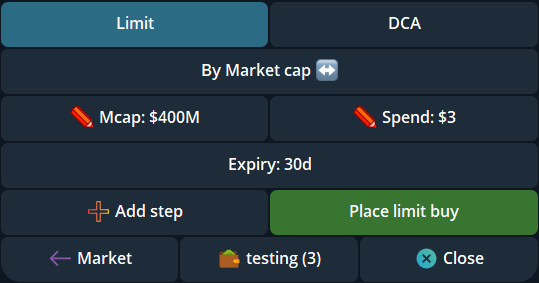
On a supported token panel, inspect Limit and the available order controls. A useful exercise is to create a practice condition, locate it in /orders, read its trigger and expiry, then cancel it while pending. Verify the changed status instead of relying on the fact that you closed its panel.
For TP/SL, identify whether the percentage is measured from the current market or the wallet's entry. Under DCA, compare Price ladder, which waits for market-cap targets, with Time Interval, which attempts a finite series of scheduled buys or sells and can use an optional market-cap range. A complete reply shortcut can place a price ladder immediately, so use the visible builder while learning which action submits the request.
5. Use simulation for the right questions
Return to /paper for virtual funding presets or Reset to $10k, and read any confirmation. This is useful for repeating the interface exercise. Deleting or revoking a Paper wallet removes it permanently; real-wallet recovery does not apply. Keep notes you want to retain outside the practice wallet before removing it.
Paper results do not establish that a real trade would fill at the same price or time. Real liquidity, fees, network conditions and execution can differ. Use the session to answer practical questions: which wallet was selected, what submitted the order, where its result appeared and how a pending order was cancelled. A simulated profit does not answer those execution questions.
6. Return to the intended real profile
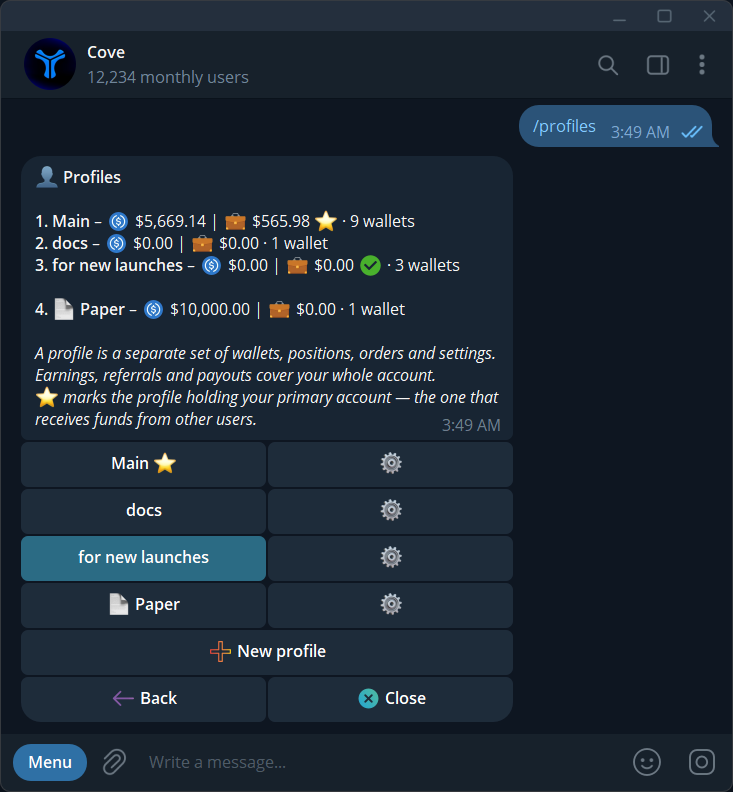
Open /profiles and select a real profile such as Main. Check its name, wallet selection, spendable balance and saved trade settings before opening another token. Real and Paper wallets stay in separate profiles; Paper wallets cannot deposit, withdraw, transfer or use money products, and are excluded from CSV exports.
Switching profiles changes the view, not the state of existing orders. Inspect /orders wherever you have active automation. The outcome of practice should be a clear understanding of your next action and its result, with the current profile visible before any real-money step.
Sources & further reading
- Cove Docs: paper trading
- Cove Docs: profiles
- Cove Docs: manage orders
- Cove Docs: take-profit and stop-loss
Product settings and availability can change. Check the current documentation before using a feature. Educational content does not predict trading outcomes.
How we approach our content